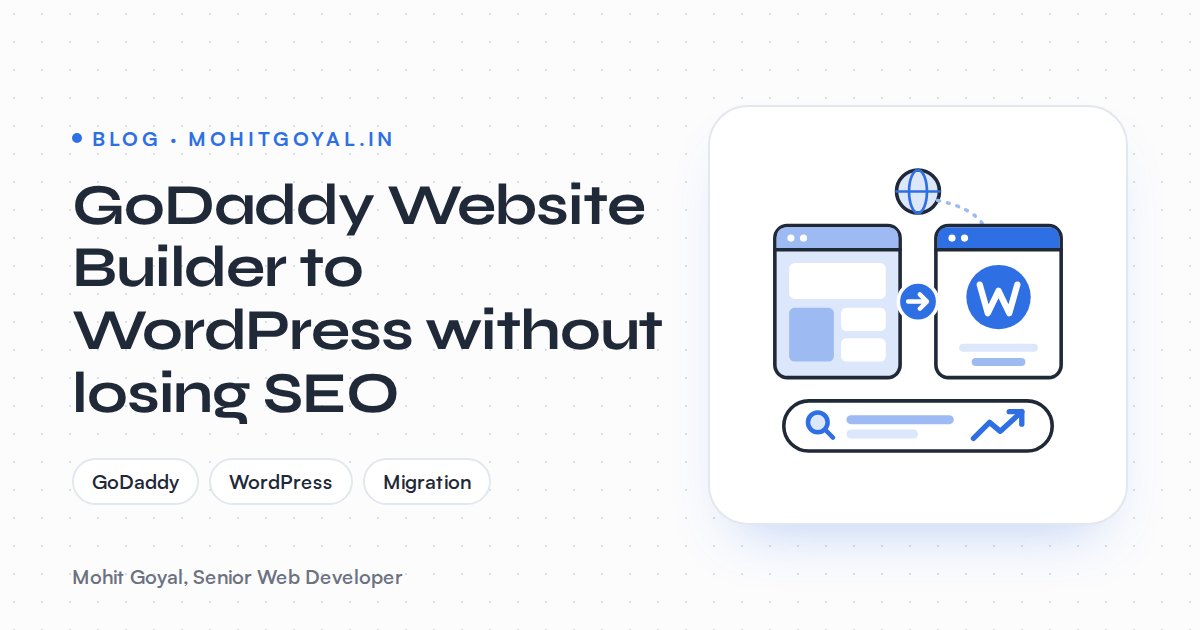
GoDaddy Website Builder has no export tool. Moving to WordPress means rebuilding every page by hand, adding a 301 redirect from every old URL that changes to its new WordPress page, and copying every DNS record (MX, SPF, DKIM and the rest) before you switch nameservers. Get those right and your Google rankings and your email should come through the move fine. When a migration costs traffic or email, the cause is usually missing redirects or DNS records that got left behind.
Below are the parts where people get stuck: rebuilding the content, mapping URLs, untangling the domain, DNS and email, and what to check in Google Search Console after launch.
Can you export a GoDaddy Website Builder site to WordPress?
No. GoDaddy Website Builder (now sold as Websites + Marketing) has no export tool, and WordPress has no importer for it. WPBeginner's guide confirms there's no export tool, and Themeisle says the same: there's no automated way to migrate.
So your content (text, images, blog posts, page titles) has to be copied out of GoDaddy by hand. The design can't be lifted at all. It gets rebuilt in a WordPress theme or a page builder. Wix and other closed builders work the same way: your content lives on their platform and they don't make it easy to leave. If you're also moving a Squarespace site, the Squarespace to WordPress guide covers the same steps.
What to save before you touch anything
- Every live URL. Crawl the GoDaddy site and also download
/sitemap.xml, so orphan pages don't slip through. - Titles and meta descriptions for each page, plus the H1.
- Images at their original size, with filenames and alt text.
- Blog posts with their publish dates and categories.
- Forms: which fields they have and where submissions go.
- Search Console data: export your top pages and queries from the last 12 months, so you know which URLs you can't afford to lose.
| What you have on GoDaddy | Moves to WordPress automatically? | What you do |
|---|---|---|
| Page copy | No | Copy it into the new WordPress layouts |
| Images | No | Download the originals, then compress them before uploading |
| Blog posts | No | Recreate each post, keeping the date and slug |
| Titles and meta descriptions | No | Re-enter them in Yoast or Rank Math |
| Design | No | Rebuild it in Bricks, Elementor or a custom theme |
| Domain registration | Stays at GoDaddy | Transfer it later if you want to (optional) |
| Keeps working only if DNS is copied exactly | Recreate every mail record before switching | |
| Rankings | Only through redirects | 301-redirect every URL that changes |
For images, my free in-browser image converter Under1MB compresses images in 11 formats without uploading anything to a server.
Should you rebuild in Bricks or Elementor?
Both Bricks Builder and Elementor work for a GoDaddy to WordPress rebuild. The right choice depends on who edits the site after launch. I build on both through my WordPress websites on Bricks, Elementor and Oxygen service. The Ravens Ait venue site is on Bricks and the Crowne Plaza London Kingston site is on Elementor. For the full comparison, see Bricks vs Elementor vs Oxygen.
The closest thing to a GoDaddy move I've done is the Aura Clips agency website. It was a Framer to WordPress rebuild on Bricks, and nothing could be exported cleanly. I rebuilt the service pages as reusable templates and set the blog up properly in WordPress. A GoDaddy rebuild goes the same way. Build templates for repeated layouts instead of one-off pages, and the site stays quick to edit.
A few rules I stick to on a rebuild:
- Build on staging, not on the live domain. The GoDaddy site keeps serving visitors until the moment you switch.
- Set WordPress permalinks to "Post name" before creating pages. Slugs like
aboutorservicesthen carry over, but WordPress adds a trailing slash by default, so/aboutbecomes/about/. Don't assume the paths are identical: test each old URL and confirm it lands on the new page with a single 301. - Don't cut content. A page that ranked and isn't on the new site loses that ranking. If you merge pages, redirect the old ones to the merged page.
- Match or beat the old speed. Builder sites are often slow. A lean Bricks or well-configured Elementor build can actually lift your rankings.
How do you keep your URLs and rankings?
Map every old GoDaddy URL to a new WordPress URL before launch, then add server-side 301 redirects for every one that changes. Google's site move guide recommends server-side permanent redirects, submitting the new sitemap and keeping redirects in place for at least a year.
Most static pages can keep the same slug, though the trailing slash means you should still test each one. Blog posts are where the URLs change most. On GoDaddy Website Builder, posts typically sit under a /f/ path, so check your own sitemap to confirm the pattern. A post at /f/spring-menu-launch would need a 301 to /spring-menu-launch/ (or /blog/spring-menu-launch/ if you use a blog base). Put every old post URL in a spreadsheet next to its new WordPress URL, and don't assume anything matches.
- 1
List every old URL
Combine your crawl, the GoDaddy sitemap and the Search Console top pages export into one sheet.
- 2
Match each one to a new URL
Point each old URL to its closest equivalent page, not the homepage. Mark the ones that stay the same.
- 3
Add 301 redirects in WordPress
Use the Redirection plugin, Rank Math's redirect manager or server rules, so redirects run on the server.
- 4
Test before and after the switch
Check each old URL returns a single 301 to the right page, with no chains or loops.
Two traps specific to GoDaddy:
- GoDaddy domain forwarding with masking is not a redirect. GoDaddy's own explanation of forwarding types notes that with masking, search engines don't index the destination URL. Never use it for a site move.
- Plan redirects on the WordPress side. GoDaddy's 301 redirect help covers its cPanel and Plesk hosting only, not the website builder, so redirects belong on the new WordPress site.
If you're changing the domain name at the same time, that's a bigger job with its own steps, including the Change of Address tool. I've covered it in how to change your domain without losing SEO.
How do you move domain, DNS and email away from GoDaddy without losing email?
Treat the domain registration, the DNS (which nameservers answer for your domain) and the email service as separate things, and copy every DNS record to the new host before switching nameservers. You don't have to move all of them, and you shouldn't move them all on the same day.
I've handled hosting and DNS migrations across GoDaddy and Hostinger for UK hospitality and e-commerce brands. The usual risk isn't the website; it's DNS records nobody knew existed.
Here's why it happens on GoDaddy. If your domain uses GoDaddy nameservers and GoDaddy email, GoDaddy sets the MX records up for you, so the owner has never seen them. Then someone moves the nameservers to Cloudflare or a new host, creates the A record for the website, and mail stops arriving.
If you use Microsoft 365 through GoDaddy, check carefully. MailRoute's GoDaddy notes point out that the MX records on those plans can point to Proofpoint, GoDaddy's email security layer, rather than straight to Microsoft. Copy what's actually in your GoDaddy DNS zone, not what a generic Microsoft guide tells you. GoDaddy's own Microsoft 365 setup page lists the CNAME, TXT and MX records involved.
The order that keeps email safe:
The records people miss most are MX, the SPF TXT record, DKIM CNAMEs, the autodiscover CNAME and the google-site-verification TXT record. Lose that last one and your Search Console domain property drops its verification right when you need it most.
Cancel the right subscription
Only cancel the GoDaddy Website Builder plan once the new WordPress site is live and email is confirmed working. If your Microsoft 365 email is also billed through GoDaddy, cancelling the wrong product takes your inboxes with it.
Transferring the domain registration away from GoDaddy is optional. If you do it, wait until the site is stable, and point the nameservers at your new DNS host before the transfer starts. That way nothing depends on GoDaddy's DNS when the domain leaves. For the hosting cutover, the usual no-downtime rules apply: build on staging, lower the TTL, then switch.
What should you do in Search Console after launch?
Submit the new WordPress sitemap in Google Search Console, then watch the Pages report for 404s over the following weeks. Google's site move guide asks you to submit the new sitemap and keep redirects live for at least a year.
- Submit the WordPress sitemap (for example
/sitemap_index.xmlfrom Yoast or Rank Math) under Sitemaps. - Use URL Inspection on your ten most important pages and request indexing.
- Check the Pages report for new 404s and "Page with redirect" counts over the next few weeks. Fix any 404 that had traffic or links.
- Update your Google Business Profile and social profiles if any of their links changed.
- Run a few post-launch checks. My free Security Headers Checker and AI Crawler Checker catch common gaps, and the Page Speed Fix Planner turns a PageSpeed report into a list of fixes.
How much does a GoDaddy to WordPress migration cost?
A GoDaddy Website Builder to WordPress migration is priced like a WordPress rebuild of the same size, because that's what it is. There's no import step to save time. What moves the price:
- Number of pages and blog posts. Each one is rebuilt and redirected by hand.
- Same design or a new one. Recreating the current look costs less than a redesign from Figma.
- An online store. Products, variations and payments mean a WooCommerce build, not just pages.
- Forms and integrations such as HubSpot, Google Sheets or booking tools.
- How tangled the DNS and email are. Simple GoDaddy email is quick to move. Microsoft 365 across several domains takes longer.
When you budget, compare market ranges for a WordPress rebuild of similar size in your country. My guides to WordPress website cost in the UK, WordPress website cost in India and website redesign cost in the US each list sourced market price ranges. Don't anchor on quotes for a simple "migration", because the work is the same as a rebuild.
What should you ask a developer before hiring?
Ask for a redirect map, a clear DNS and email plan, and confirmation that you'll own every account at the end. These questions cover the rest:
- Will you give me a URL redirect map to review before launch?
- Which page builder or theme will you use, and can my team edit it without you?
- How will you handle DNS and email, and which records will you copy?
- Will you build on staging and switch with no downtime?
- What will you check in Search Console after launch, and for how long?
- Who owns the hosting, domain and WordPress admin accounts at the end? (It should be you.)
If the answer to the DNS question is vague, keep looking. That's where most of these moves go wrong.
Next step
If you're on GoDaddy Website Builder and ready to move, send me your current URL and a list of what has to keep working, like email, forms or a store. I'll scope the rebuild, the redirect map and the DNS cutover together. Have a look at my hosting migrations, DNS and maintenance retainers service, or book a discovery call.